
What They Don’t Tell You Happens the Moment Your Customer Hits Send – And Why It Can Make or Break Your Business!

Ever found yourself staring blankly at a quote form after clicking “Send,” wondering if your message vanished into the digital abyss or if someone actually got it? Yeah, me too—and it’s a frustrating pitfall for tons of businesses out there. Here’s the kicker: while we’re all itching to jump into full-on redesign mode, obsessing over aesthetics and fancy features, sometimes the real game-changer is just stepping back and checking if that message actually made it. It’s surprising how a few simple tests can shine a spotlight on exactly where things go sideways—before you throw down cash and hours on a revamp that doesn’t fix a darn thing. So, if you’re ready to cut through the noise and make sure your customers’ “Send” clicks turn into real connections, stick around. You might just find it’s easier than you think to turn confusion into clarity. LEARN MORE
A customer fills out your quote form, taps Send, and waits. The page looks the same. They can’t tell whether the message arrived, and you can’t see that they hesitated. Checking what happens after the tap takes less time than redesigning the form and can show you exactly where to start.
1. Send yourself one recognizable request
Use the page customers actually reach from your homepage. On a phone, enter your own contact details and put “TEST — website quote form” in the message. After tapping Send, look for a clear confirmation. Then check the inbox or dashboard that your team uses to pick up new requests. If you find the message only in a dashboard someone checks once a week, the website accepted it but your team may still miss it.
2. Watch the seconds between sending and confirmation
Try the same path on a slower connection using a test copy if you have one. The page should tell people that their request is being sent. On our own website, a loading screen let people tap back while the request was still going through. We changed the form to show when it was working and keep the request in place. A short status message such as “Sending your request…” is enough to tell a visitor what to do next.
3. Give customers a next step they can use
After success, say where a reply will go. If you know your normal response time, say when the customer should expect to hear back. If the form fails, keep what they entered and show a backup way to reach you. Use a business number or email address someone checks.
4. Write down the last step you know worked
Separate “the page opened,” “I saw a confirmation,” and “the message reached the right person.” Those are three different observations. If the confirmation appeared but the inbox stayed empty, start by checking the saved entry and notification settings. That gives you a place to look before you spend money on changes that leave the problem in place.
Repeat the same short test after a redesign, an email change, or a form update. You only need one clear answer: did the request make it from your customer’s phone to the person who can respond?
Author bio
Lance Valenine runs Morrowcove, a veteran-owned business in Little Rock that helps small businesses find and fix website problems that get in the way of calls, bookings, and quote requests.

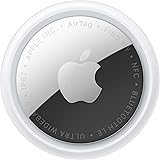
Apple AirTag (2nd Generation): Tracker for Keychain, Wallet, and More; Locator with Sound; Simple One-Tap Setup with iPhone or iPad; Key Finder with up to 1.5X Precision Finding Range
$18.00 (as of November 24, 2026 03:28 GMT +00:00 - More infoProduct prices and availability are accurate as of the date/time indicated and are subject to change. Any price and availability information displayed on [relevant Amazon Site(s), as applicable] at the time of purchase will apply to the purchase of this product.)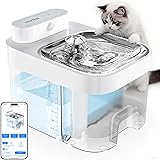
HAPAW Filterless Cat Water Fountain, App Monitoring Pet Fountain, White | Wastewater Separation, App Monitoring, 5000mAh Battery & Plug-in, 101oz/3L Tank, Ultra-Quiet, Easy to Clean, 2.4GHz Wi-Fi
$75.99 (as of November 24, 2026 03:27 GMT +00:00 - More infoProduct prices and availability are accurate as of the date/time indicated and are subject to change. Any price and availability information displayed on [relevant Amazon Site(s), as applicable] at the time of purchase will apply to the purchase of this product.)
Liquid Death Soda Alternative - Doctor Death (Cherry, Cream, Spice), 10 Calories, 2g Sugar, No Caffeine, No Artificial Colors or Dyes, Soda Flavored Sparkling Water, 12 Fl Oz (Pack of 12)
$10.92 (as of November 24, 2026 03:25 GMT +00:00 - More infoProduct prices and availability are accurate as of the date/time indicated and are subject to change. Any price and availability information displayed on [relevant Amazon Site(s), as applicable] at the time of purchase will apply to the purchase of this product.)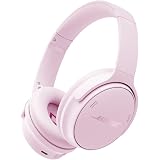
Bose QuietComfort Headphones - Wireless Bluetooth Headphones, Active Over Ear Noise Cancelling and Mic, USB-C Charging, Deep Bass, Up to 24 Hours of Playtime, Petal Pink - Limited Edition Color
$169.00 (as of November 24, 2026 03:28 GMT +00:00 - More infoProduct prices and availability are accurate as of the date/time indicated and are subject to change. Any price and availability information displayed on [relevant Amazon Site(s), as applicable] at the time of purchase will apply to the purchase of this product.)













Post Comment